
View & edit tasks on the web
How to view and edit tasks on the web app.
Navigate to Task Management.
If you’re assigned to more than 1 site, then select the site you want to view tasks in by clicking on the site in the left site bar.
If you have a lot of tasks and can’t immediately see the task you’re looking for, you can search for it in the Search bar.
There are then 2 ways to view it.
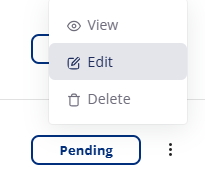
Either you can scroll to the right and click on the 3 dots button under Action and click view.

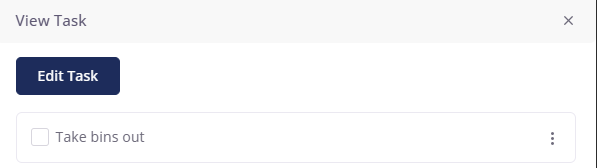
Or, you can click on the name of the task itself. You can now view the task, action items within it and add comments from here too.
How to edit a task:
It’s worth bearing in mind that you can’t edit tasks that are completed already.
There are 2 ways you can edit a task.
Either in the 3 dots button under Action and clicking Edit.
Or by clicking on the name of the task.
And clicking Edit Task at the top of the list.
This then takes you back to the same process as when creating the task in the first place.
Any changes made will be instantly available on both the web and mobile apps.
How to delete a task
Find the task in Task Management, scroll to the right, click the 3 dots button under Action and click Delete.
Deleting a task removes it from the schedule, so a repeating task will stop appearing from its next occurrence onwards. Tasks that have already been completed can’t be edited or deleted, so your records of past completions are kept.
A deleted task can’t be restored - if you might need it again later, edit it instead.